How to give Grok Bot your Search Console and GA4 data
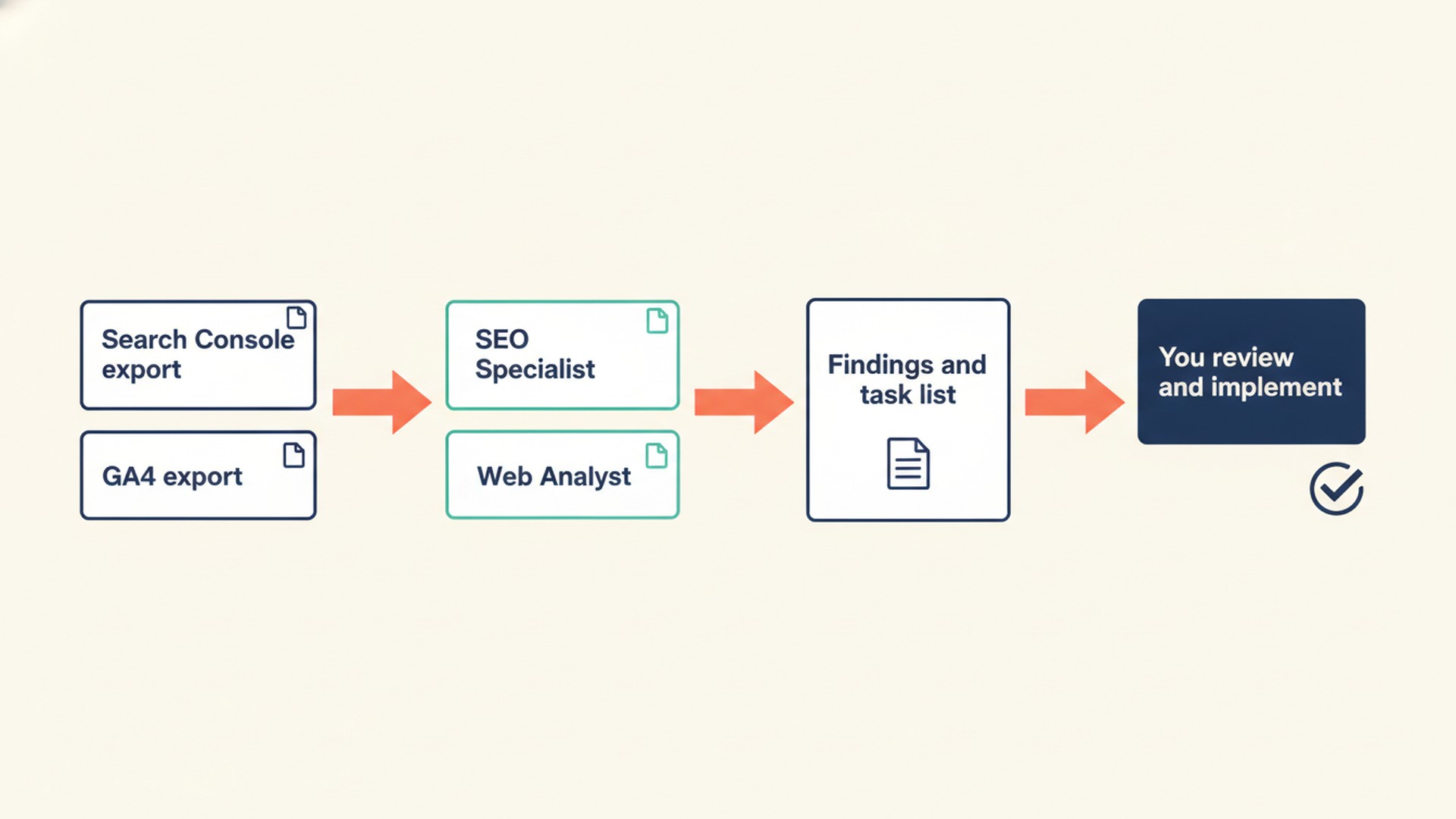
The simplest way to give Grok Bot your Search Console and GA4 data is to export reports as CSV, Excel or Google Sheets files and attach them directly to the chat. You then tell the Bot exactly what each file contains. The official docs we checked do not list a direct Search Console or Analytics app. For larger sites, the Google BigQuery app or a custom connector are options. Whether you upload files or connect an app, you always review the findings and implement the changes yourself.
Quick start
- Export the necessary performance and traffic reports as CSV or Google Sheets.
- Name each file clearly so you and the bot know what it contains.
- Attach the files to your chat or let the Bot read them through a connected Google Sheets app.
- Brief the bot with a detailed prompt that explains the data and your goals.
- Review the plan it returns and implement the site or tracking changes yourself.
Can Grok Bot connect to Search Console and GA4 directly?
The official docs we checked do not list a Google Search Console app or a Google Analytics app. Look in Connect apps in your own account to see the current catalog. Attaching exported files to the chat works on any account and needs no setup. If your data already lives in Google Sheets or BigQuery, the Google Sheets, Google Drive and Google BigQuery apps let a Bot read it with the access of the Google account you connect.
Third-party services do offer custom connectors, also known as MCP servers, for Search Console. ExtraHeads does not review or recommend any specific vendor. A Bot can add an MCP server by URL or by a command that runs on its computer. If you add one, always read the access it requests and prefer read-only Google access. Remember that a connected app or server is available to every Bot on the account.
Which way of sharing your data should you use?
| Method | What you do | Good for | Watch out for |
|---|---|---|---|
| Upload CSV or Excel exports to the chat | Save reports to your computer and attach them to your message. | Most small to medium sites with standard data needs. | Desktop limits: 20 attachments per message, 250 MB per document. Search Console exports stop at 1,000 rows. |
| Google Sheets through Google Drive and Sheets apps | Export to Google Sheets from Search Console or GA4, connect the Google Drive and Google Sheets apps, and name the sheet in your message. | Keeping data organized online without downloading files. | The Bot can also edit cells in sheets your account can edit, so share a copy. A connected app is available to every Bot on the account. |
| BigQuery app with Search Console bulk export or GA4 BigQuery Export | Set up Search Console bulk data export or GA4 BigQuery Export, then connect the BigQuery app so the Bot can query those datasets. | Very large sites that hit export limits in the standard reports. | Needs a Google Cloud project with billing; usage above the free level is charged. Search Console bulk export starts up to 48 hours after setup and has no earlier history. |
| A custom connector (MCP server) you add | Ask the Bot to add an MCP server by URL, or choose Add a custom connector in Connect apps (Remote HTTPS or Command). | Repeated pulls of Search Console data, if you trust the provider. | Read the access it requests and prefer read-only Google access. It is available to every Bot on the account. |
| Letting the Bot open Search Console in its browser | Ask the Bot to open Search Console in its browser and sign in when it asks. | Spot checks on specific pages without downloading. | Signed-in sessions are shared by all your Bots, and numbers read off a screen are harder to check later than an export file. |
For most small sites, downloading CSV or Excel exports is the best starting point. It requires no configuration, avoids sharing active logins with the bot, and lets you keep a permanent record of exactly what data the bot analyzed.
What should you export from Search Console and GA4?
Use the same date range in every file, so Search Console and GA4 numbers describe the same period. These are the reports worth exporting, with the settings to set first. For the other SEO inputs, such as your sitemap and keyword lists, see how to use Grok Bot for SEO.
| Report | Where to find it | Settings before export | What it answers |
|---|---|---|---|
| Search Console Performance | Performance > Search results | Last 3 months (the default), search type Web. One export includes every tab plus a Filters tab. | Which queries and pages bring in the most organic clicks? |
| Search Console Performance previous period | Performance > Search results | The 3 months before that, same search type and filters. | Which pages lost clicks between two periods? |
| Search Console Performance for one page | Performance > Search results | Add a page filter for one URL, search type Web, then export. Repeat for each page you care about. | Which queries bring impressions and clicks to this page, and do two pages share the same query? |
| Search Console Page indexing | Page indexing report | All known pages, or filter to a submitted sitemap. Example URL lists stop at 1,000 rows. | Which important URLs are not indexed and why? |
| GA4 Traffic acquisition | Reports > Acquisition > Traffic acquisition | Same date range as Search Console; keep Session default channel group as the dimension. | How does organic search compare to direct or social traffic? |
| GA4 Landing page | Reports > Engagement > Landing page | Same date range; add the secondary dimension Session source / medium. | Which pages keep visitors engaged or drive key events? |
| GA4 Google Organic Search Queries | Search Console collection in Reports, after you link Search Console and publish the collection from Library | Same date range as the other files. | Which queries bring clicks, shown inside GA4 (Search Console metrics only, no GA4 dimensions). |
| GA4 Google Organic Search Traffic | Search Console collection in Reports, after linking | Same date range. These reports hold at most 16 months of data. | Which landing pages get organic clicks, and how engaged are the visitors who arrive there? |
| GA4 key events | Traffic acquisition or Landing page reports | Key events show only for events you marked as key events. | Which channels and landing pages lead to key events? |
How to export the files:
- In Search Console, open the report, set the date range, search type and filters, click the export button and choose Google Sheets, Microsoft Excel or CSV. A CSV export of the Performance report arrives as a zip with one CSV per tab, so Excel or Google Sheets keeps the tabs together (Search Console export help, Search Central note on Performance exports).
- In GA4, open the report under Reports, click Share this report in the top right, then Download File. You need at least the Viewer role on the property.
- Choose Download CSV or Export to Google Sheets. PDF is also offered, but a CSV or sheet is easier for the Bot to read row by row.
How do you get around the 1,000-row export limit?
When you export a report from the Search Console interface, the table is truncated to 1,000 rows of representative examples, while the totals in the file are the real totals (Google export help). Search Console also leaves anonymized queries, those not issued by more than a few dozen users over two to three months, out of every table, but counts them in chart totals. So the rows in your file will not add up to the totals, and the Bot should be told that.
Google says that for smaller sites 1,000 rows might be most or all of the data, while larger sites typically have much more. If you need more, the Search Analytics API and the Looker Studio connector go up to 50,000 rows per day per site per search type based on Google's performance data deep dive. Bulk data export to BigQuery sends all performance data except anonymized queries every day. It needs a Google Cloud project with billing, it is charged above a free usage level, and it does not include data from before you set it up.
In GA4, a CSV or Google Sheets download includes up to 100,000 rows (GA4 share and export help), which covers most report exports. GA4 BigQuery Export sends raw events instead, with a daily limit of 1 million events on standard properties, and its numbers can differ from the GA4 interface.
How do you brief the SEO Specialist on Search Console data?
Attaching files is only the first step. Tell the Bot what each file contains, which period it covers and what limits apply, so it reads the columns the way you meant.
Use this prompt with your SEO Specialist role to analyze organic search performance. Replace the bracketed placeholders with your actual details before sending.
Role: SEO Specialist
Domain: [yourdomain.com]
Property type: [Domain or URL prefix]
Date ranges: [current 3 months] vs [previous 3 months]
Search type: Web

I have attached the following files:
1. [gsc-performance-current.xlsx]: Performance export for the current period, all tabs (Queries, Pages, Countries, Devices, Search appearance, Dates).
2. [gsc-performance-previous.xlsx]: the same export for the previous period.
3. [gsc-page-URL.xlsx]: Performance export filtered to one page, one file per page.
4. [gsc-page-indexing.xlsx]: Page indexing report.

Rows are capped at 1,000 and anonymized queries are missing from the rows, so row sums will not match the totals. Separate facts from these files from your assumptions. Do not invent search volumes or any number that is not in the files.

Please review the data and provide:
- A list of pages that lost clicks between the two periods.
- Queries with high impressions and low CTR at an average position of 10 or better.
- Queries that appear in more than one page file.
- Important URLs from the indexing report that are not indexed.
- A prioritized task list for the writer and the developer.
- An explicit list of anything you could not verify from these files.
How do you brief the Web Analyst on GA4 data?
GA4 counts sessions and Search Console counts clicks, so the numbers for the same page usually will not match. The bot needs to know your time zone, your date range, and which events you actually consider key events.
Give this prompt to the Web Analyst role along with your GA4 exports. If you do not have ad spend inputs, remove that line.
Role: Web Analyst
Site: [yourdomain.com]
GA4 Property Time Zone: [e.g., America/New_York]
Date range: [e.g., Aug 1 to Oct 31, 2026]

I have attached the following files:
1. [traffic-acquisition.csv]: GA4 Traffic acquisition report.
2. [landing-page.csv]: GA4 Landing page report with Session source / medium as a secondary dimension.
3. [organic-search-traffic.csv]: GA4 Google Organic Search Traffic report (Search Console linked).

We have marked the following events as key events: [purchase, generate_lead].
Inputs: [Insert total ad spend for the period, if applicable].

Separate facts found in the files from your own assumptions. Do not invent benchmarks, revenue or conversion rates that are not in the files.

Please review the data and provide:
- A channel comparison based on sessions, engagement rate, and key events.
- Landing pages with a high number of organic sessions but very few key events.
- Landing pages where Search Console clicks and GA4 sessions differ a lot, and possible reasons.
- A short list of potential tracking gaps.
- Any questions you need answered to complete a full funnel map.
What does a session with this data look like?
Illustration: a made-up business, written by ExtraHeads to show the flow. It is not a real session, a Grok Bot screenshot or a result.
What the person gave: The site owner attached two Search Console Performance exports (this summer and the previous three months), a Page indexing export and a GA4 Landing page CSV for a made-up bakery site. They used the SEO Specialist prompt, noting that they wanted to see which bread recipe pages were dropping in clicks over the summer.
What they asked: They instructed the bot to read the performance tabs, identify pages losing traffic, list the queries those pages used to rank for, and format the findings into a clear table so they could decide which recipes to update.
What came back: The bot returned a table of pages that lost clicks alongside the specific file rows it used as evidence. It provided a list of open questions about the site structure, and a task list marked by owner: the writer to review the headings on the recipe pages that lost clicks, the developer to check two recipe URLs listed as not indexed, and the site owner to decide which pages to update first.
What should you check before acting on the findings?
- Compare a few numbers from the bot's response directly with your Search Console and GA4 interfaces to ensure it read the files correctly.
- Confirm that the date ranges and time zones match exactly across all reports.
- Remember that Search Console clicks and GA4 sessions are counted differently, so they usually will not match, even for the same page.
- Check if the newest data in Search Console is preliminary and subject to change.
- Verify that your key events actually show up in the GA4 reports; they only appear if you marked them as key events in the settings.
- Keep your export files securely stored with dates attached so you have a record of the raw data.
- Treat the findings as a plan. The SEO Specialist and Web Analyst roles do not change your live site; you or your developer implement the changes.
How do you keep your Google data safe when you share it?
Sharing file exports instead of direct logins is the safest way to limit access. If you need to add a teammate or a custom connector to your Google accounts, always use the lowest possible permission level. In Search Console, a Restricted user has simple view rights on most data; in GA4, the Viewer role on the property is enough to share or export reports.
If you use a third-party MCP server, check which Google access it asks for before you approve, and prefer read-only access. Remember that all your Bots share one cloud computer. Browser cookies, signed-in sessions, and files are visible to every Bot, so do not place a credential or file on it that another Bot on your account should not use.
For API keys, enter them in the secure secret card when the Bot asks, and never paste passwords or one-time codes into an ordinary chat. Remove users, connectors and apps you no longer need.
Which ExtraHeads roles work with this data?
The ExtraHeads SEO Specialist is a ready AI specialist with instructions, skills and routines. With your Search Console exports it maps one primary keyword to each URL, drafts on-page briefs and turns indexing issues into developer tasks, without inventing search volumes. The Web Analyst reads your GA4 exports to map funnel stages, draft GA4 and GTM tracking briefs and calculate acquisition cost and conversion rates from the inputs you give it; the Web Analyst sample shows the format.
These bots do not network automatically; the marketing team guide explains how to route work between roles. You manage the handoff by passing the approved organic search findings from the SEO Specialist to the Web Analyst, or vice versa. You still check their numbers against the source reports, decide what to change, and make the page edits and tracking changes yourself or with your developer. How this guide itself was briefed, fact-checked and measured is shown in the SEO content workflow case study.
ExtraHeads templates do not include a built-in Search Console or GA4 connector. If your own Grok Bot account has a connected app, such as Google Sheets or BigQuery, it is available to every Bot on your account, including a role you add. Each role is $19, or $99 for all 22 roles, paid once. ExtraHeads is independent and does not sell Grok Bot access; to get access see the signup guide.
Frequently asked questions
Can Grok Bot read my Search Console without exporting?
The official docs we checked do not list a Search Console app. Without exports, you can let the Bot open Search Console in its browser, or add a third-party custom connector if you trust it with read-only access to your data.
Is the 1,000-row export enough?
Often, for a small site: Google says 1,000 rows might be most or all of a smaller site's data. Larger sites typically have more, and the Search Analytics API, the Looker Studio connector or bulk export to BigQuery return more rows.
Does the SEO Specialist connect to Google Analytics?
No, the ExtraHeads SEO Specialist template relies on the CSV or Google Sheets exports you provide. It has no built-in connection to Google Analytics, and neither does the Web Analyst; both work from the files you share.
Do I need BigQuery?
Not for most sites. Interface exports work without it. BigQuery helps when you need more rows than the interface export gives, and it needs a Google Cloud project with billing.
Can the bot change my site or my GA4 settings?
The SEO Specialist and Web Analyst roles analyze the files and prepare plans and tracking briefs; they do not publish changes or alter live GA4 or GTM tags. You or your developer implement the changes.